

Tags and Segments
Wide Angle Analytics allows segmenting traffic by applying tags to a visit or a session.
The tags act as filters, enabling the creation of both simple and complex expressions. This provides users with great flexibility when building custom dashboards.
Quick Start
Navigate to your site dashboard. In the left-side panel, under Configuration, you will find the Tags option.
Create your first tag by selecting Add Tag.
Creating a Tag
Give your tag a human-friendly and meaningful name. Tag names will be used later in the dashboard, so it is important to choose names that are both useful and concise.
Tags are visible to everyone with access to the site dashboard.
Next, create your first filter. By clicking on the hamburger menu, you can add a new condition or condition group.
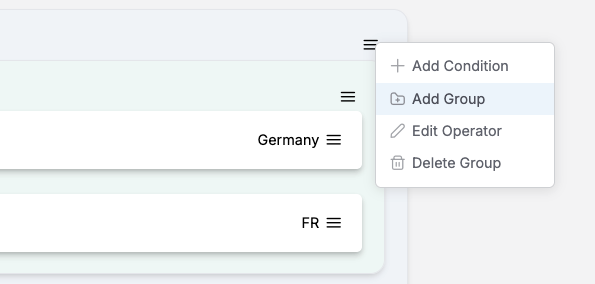
A Condition is a single filter, such as Country == Germany, whereas a Condition Group is a collection of conditions. Condition Groups can contain individual conditions or other groups.
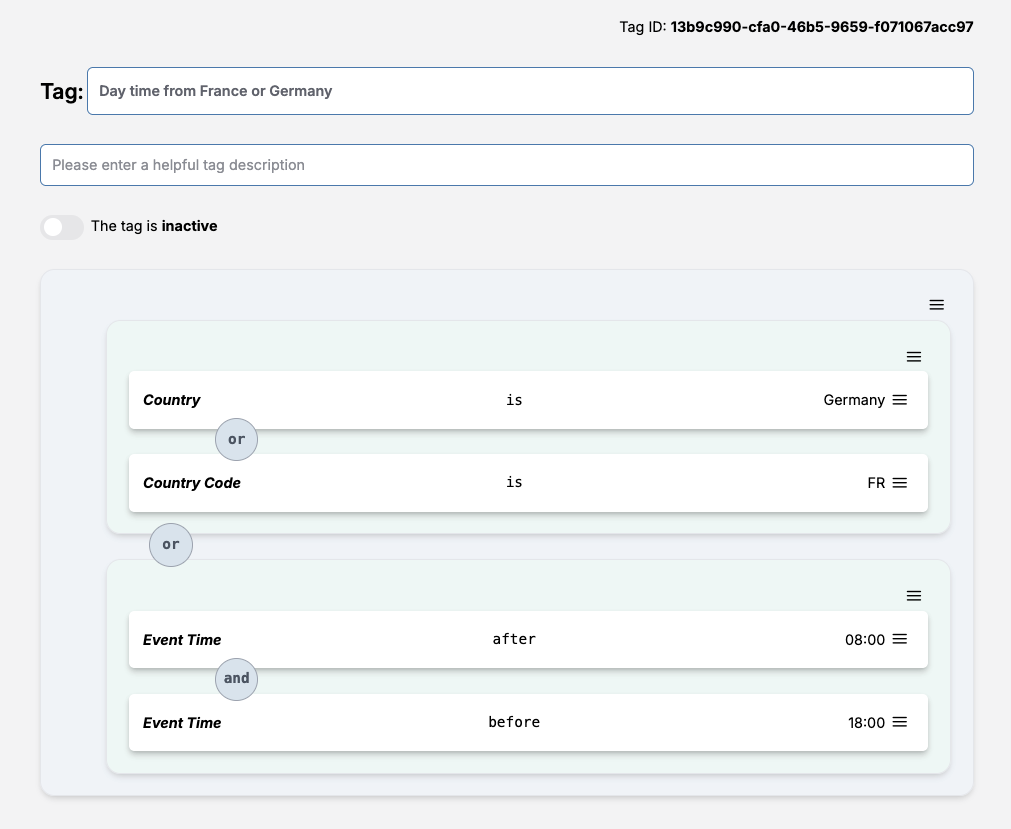
You can define multiple groups and control the logical operator (OR or AND) between groups, as well as between individual conditions within a group.
To change the comparison operator, click on the hamburger menu of a specific group and select Edit Operator.
Here is an example of a tag that will segment traffic coming from either Germany or France between 8 AM and 6 PM.
Be sure to save your tag.
Activating a Tag
Once your tag definition is complete, activate the tag. From this point forward, all events matching your filters will be tagged and discoverable in the dashboard.
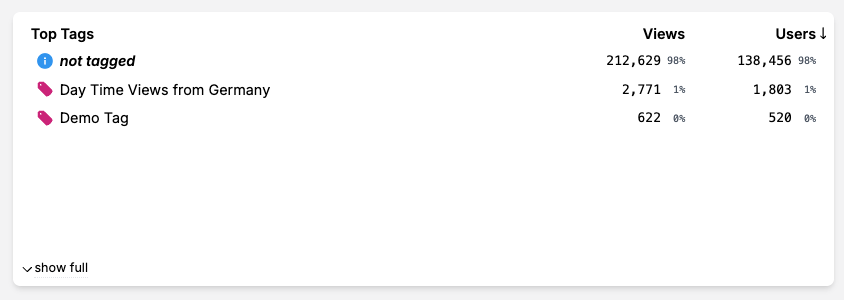
The time of activation is a critical point in the tag lifecycle. Currently, tags do not apply retroactively.
Similarly, changes to active tags will take effect from the moment the change is saved.
Available Conditions and Filters
You have a wide range of filters to choose from. First, select a field or event attribute you want to evaluate. These include:
- Time on Page – in milli seconds,
- Country – name, eg.: Germany,
- Country Code – the ISO code, e.g.: FR,
- Region – name, eg.: Holland,
- Region Code – an ISO code, eg.: BE-BRU,
- Referrer,
- URL Path,
- URL Fragment,
- Event Type – pageleave, click, values, pageview, download, action,
- Customer ID – explicitly provided via Wide Angle script on your website or via API,
- Session ID,
- Event Time,
- Event Date,
- Value parameter,
- and custom parameters as Text, Date or Time.
Depending on the type of the selected field, you will be able to select appropriate comparison operations. These include:
isstarts withandends withcontainsone ofis emptyafterandafter or atbeforeandbefore or atat- and typical numeric operators equals, less, less or equals, greater, greater or equal,
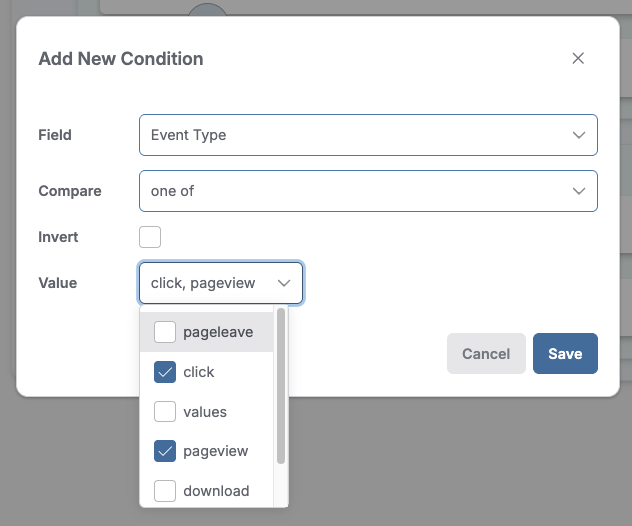
Every condition can be negated, as in NOT EQUAL by using the Invert toggle on the condition.
Frequently Asked Questions
Making Changes to Tags
You can modify both active and inactive tags. However, please note that neither the creation nor the updates to tags apply retroactively.
When you activate a tag, only events from that moment onward will be tagged if they match the filters.
Likewise, any modifications to active tags will apply from the time the changes are saved.
Deleting a Tag
If you wish to delete a tag, you must first deactivate it. Please note that deleted tags cannot be restored.
You can, however, duplicate a tag before – even deleted one, if needed.
Duplicating a Tag
Active, inactive, and deleted tags can be duplicated from the main Tags consoles. This action clones a selected tag, copying its filters and conditions.
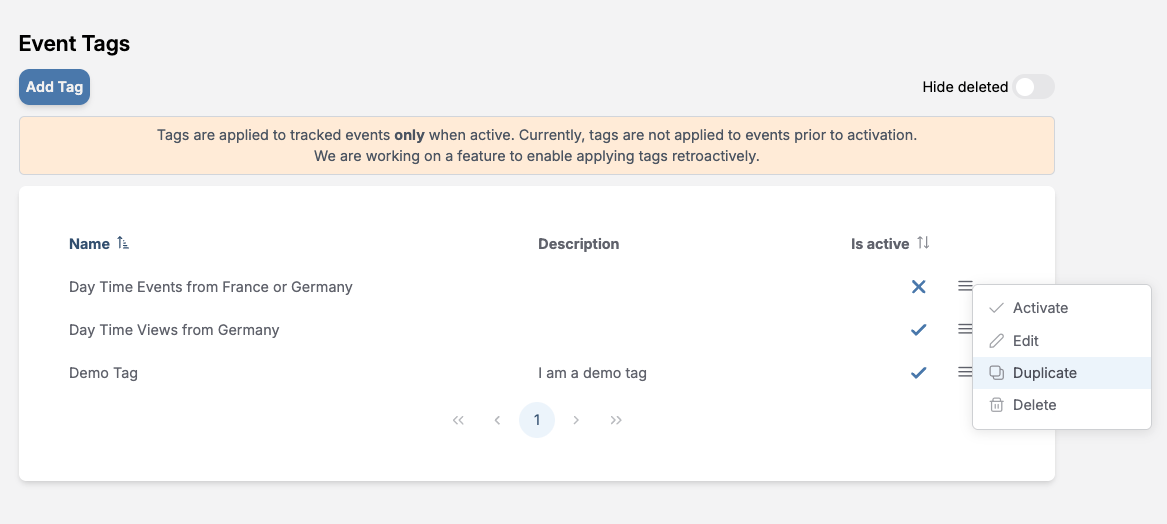
The new tag is inactive by default.
Be sure to update the tag with a human friendly name.
Still need help? In that case please contact our support via, email or chat.
